More credits.More possibilities.

Generate, edit, extend and enhance with one credit balance.

All AI video tools Video Duration up to 30s Video Resolution up to 4k Commercial use license

Imagine it. Make your videos sharper.

AI Video Generator — Create Sharper Videos from Text and Images

Generate AI videos from text or images with Wan 3.0, Wan 3.0 Prime, Seedance 2.5 and MiniMax H3. Try your first video free, then edit, extend and upscale with Sharper.video.

A new scene starts with an idea.
0 / 20,000

ModelWan 3.0
CHOOSE YOUR VIDEO MODEL

Sign up and start creating for free

Choose your model. Shape your scene.Try free video upscaling

IMAGINATION, IN MOTION

AI video, made to move.

Turn a text prompt or image into a cinematic scene. Shape the light, the camera movement and the feeling—with Sharper.video. Then upscale your AI-generated videos to 4K at 60 fps with our Video Upscaler for sharper detail and smoother motion.

Free credits for your first video.
Enhance to4K · 60fps
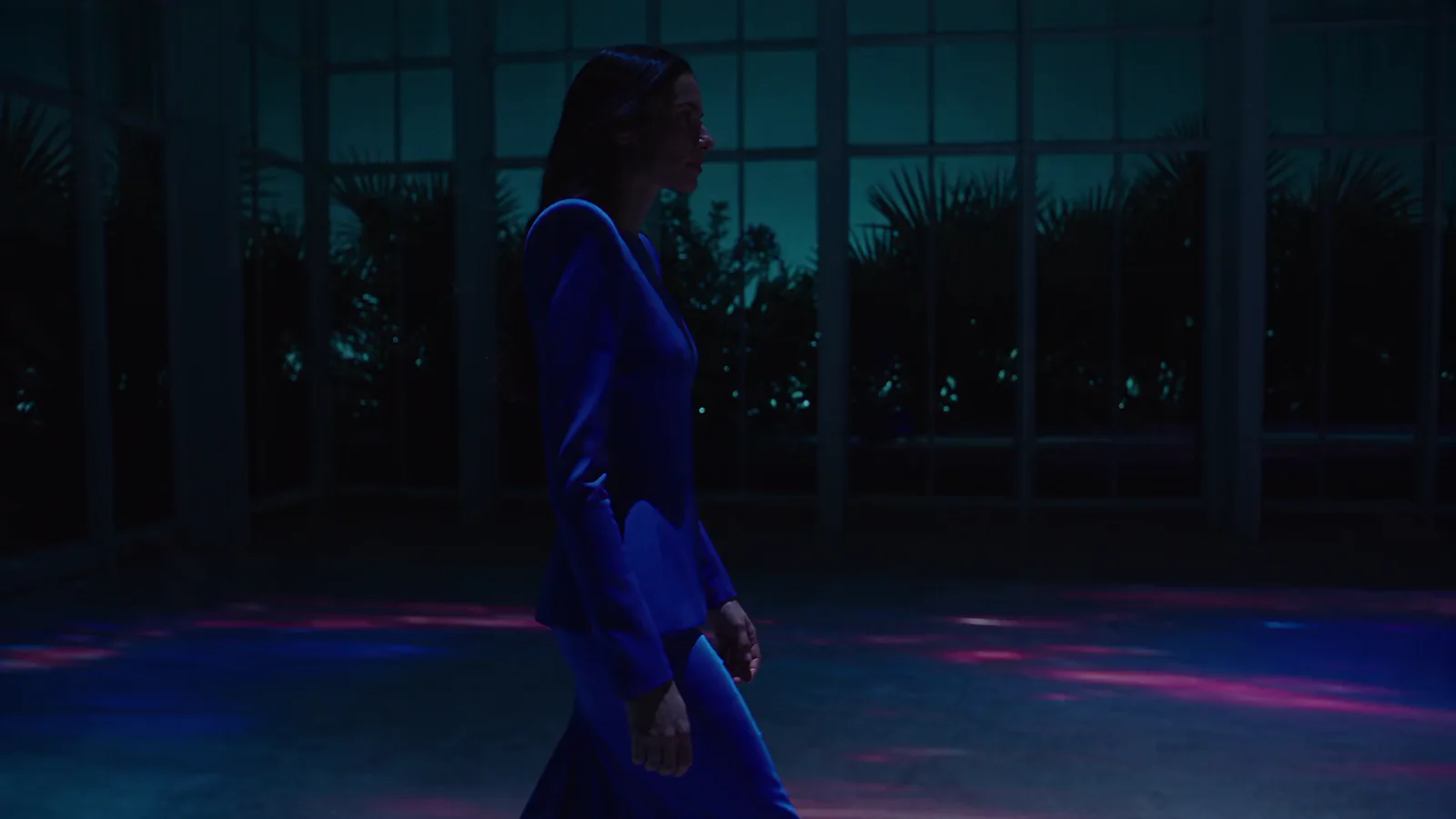
Prompt: A woman in a blue suit walks through a glass hall at night, with teal and magenta light reflected across the floor.

YOUR IDEA. YOUR MODEL.

One workspace. More ways to create.

Compare AI video models for text to video and image to video. Choose cinematic motion with Wan, synchronized audio with Seedance, or coherent 2K clips with MiniMax H3.

CINEMATIC AI VIDEO

Wan 3.0 & Wan 3.0 Prime

Create cinematic AI videos from text or images with flexible 2–30-second clips and up to 1080p output. Choose Wan 3.0 Prime for faster generation at 1.5× the Wan 3.0 credit cost.

2–30 seconds · Up to 1080p
COHERENT 2K VIDEO

MiniMax H3

Turn text or a start image into coherent AI videos with MiniMax H3. Create 5–15-second clips in 768p or 2K for product demos, social content and cinematic scenes.

5–15 seconds · Up to 2K
SYNCED AUDIO + MOTION

Seedance 2.5

Create AI videos from text or images with Seedance 2.5, combining synchronized audio and motion. Explore 4–30-second clips and resolutions from 480p to 4K.

4–30 seconds · Up to 4K

Available duration, resolution and audio settings depend on the model and selected input.

A FEW SECONDS. SO MANY POSSIBILITIES.

AI video examples for your next idea.

Explore fashion videos, animated stories with sound and romantic kissing scenes. Choose a direction, make the prompt your own, and create a video from text or an image.

01 / FASHION & BRAND VIDEO

Portraits with presence.

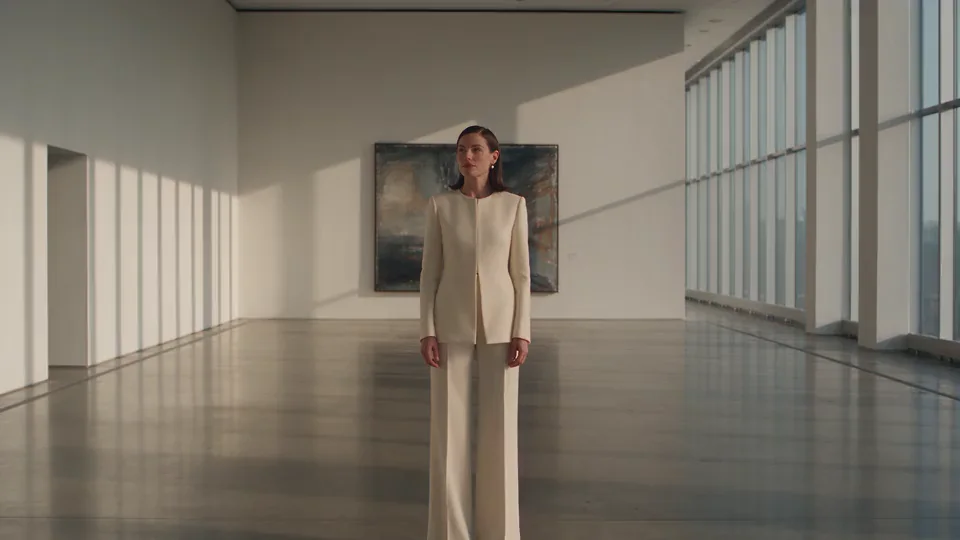
Bring portraits and fashion ideas into motion with natural light and a slow camera move. Create AI fashion videos for social media and brand campaigns.

Fashion filmsBrand campaigns

02 / ANIMATION & SOUND

AI animation with sound.

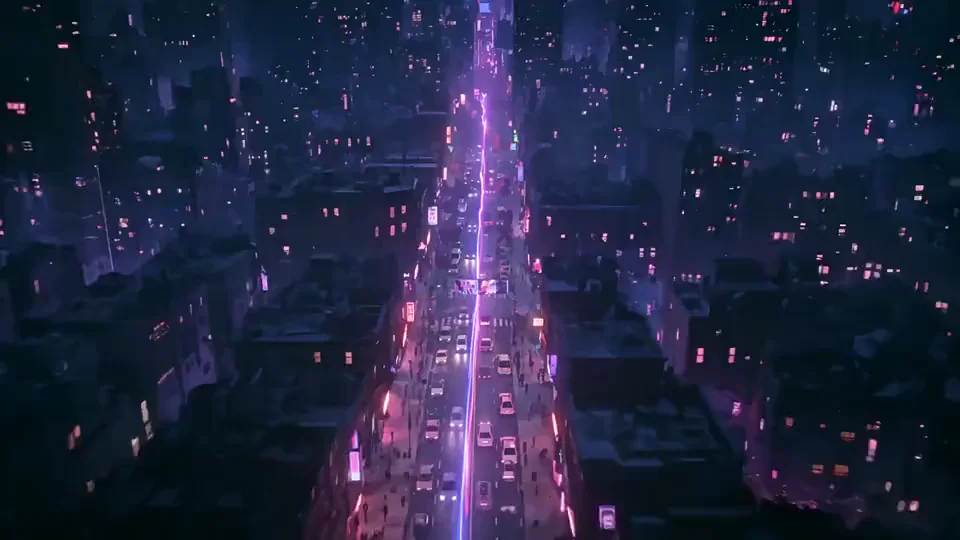
Explore an animated short film with neon city streets, expressive characters and sound effects. Start with a prompt or character image to create your own animated scene.

30-second exampleSound effects

03 / ROMANTIC MOMENTS

AI Kissing Video

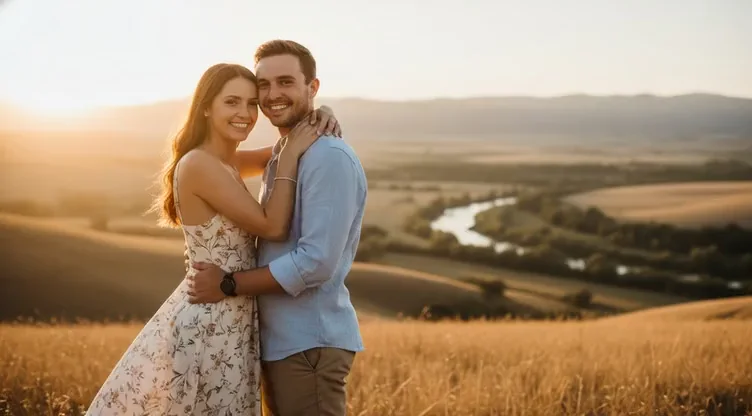
Create an AI kissing video from a single photo of two people. Turn a still moment into a romantic kiss with natural-looking motion—no text prompt needed.

Couple photosRomantic scenes

Your next scene starts with your own words or image.

Create your own video

A little inspiration. An entirely new direction.

Find AI video prompt ideas for product demos, social media clips, travel scenes and animated stories.

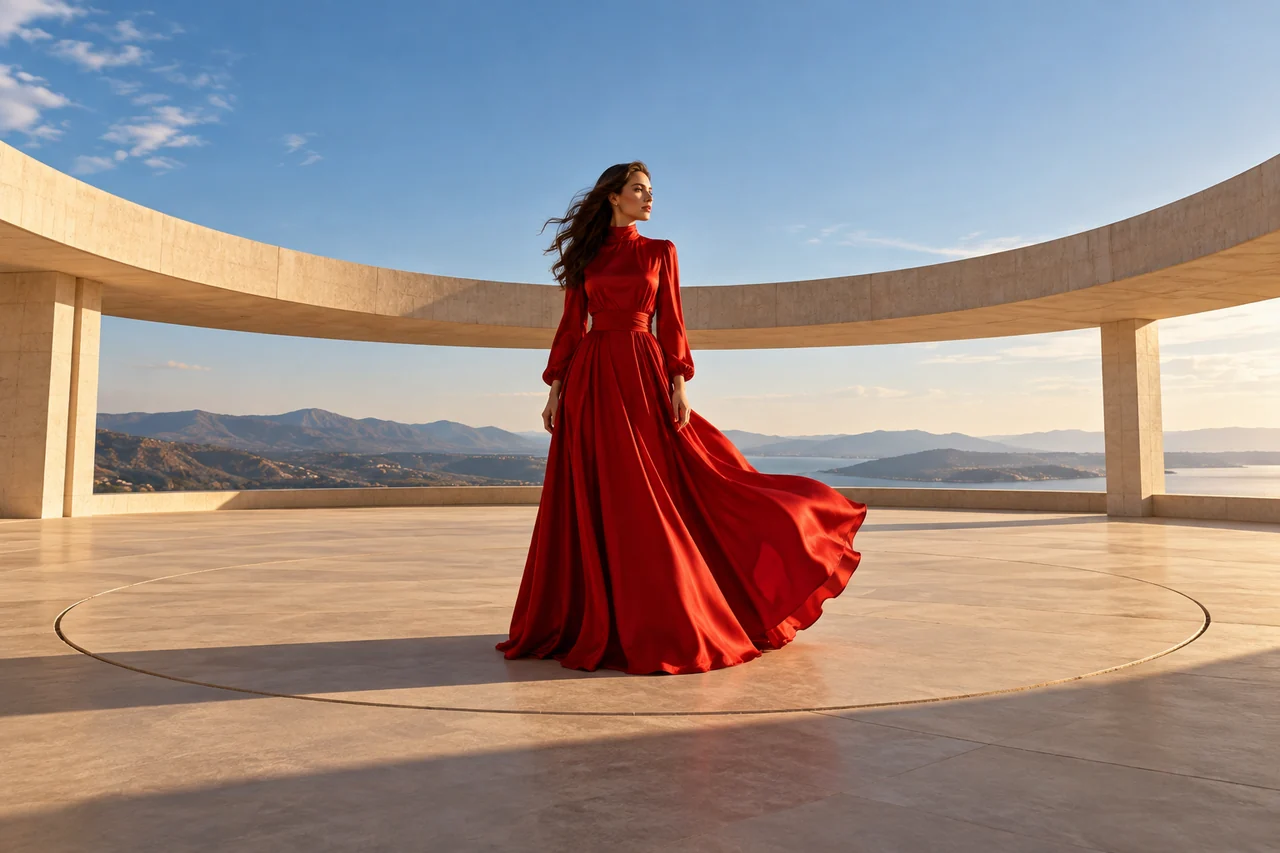
Red fabric moving through a sculptural architectural setting, image-to-video inspiration A STILL. A STARTING POINT.

“Let the fabric catch the wind. Slowly orbit the camera.”

IMAGE TO VIDEO AI

Your images have a story to tell.

Turn a product photo, a portrait or an illustration into a starting frame. Describe what should move, how the camera should travel, and the atmosphere you want to create.

Keep the image. Imagine what happens around it.

Animate your image

TAKE THE NEXT STEP

There’s more to the story.

A new direction. Clearer captions. A sharper finish. Keep creating with tools for the next stage of your video.

FROM A THOUGHT TO A SCENE

Less setup. More imagination.

  1. 01

    Start with words or an image.

    Write your idea, upload a starting image, or make one of our inspiration prompts your own.

  2. 02

    Give your video a direction.

    Choose Wan 3.0, Wan 3.0 Prime, Seedance 2.5 or MiniMax H3. Set the available video options and review the credit cost.

  3. 03

    Create, then keep exploring.

    Generate your clip. Refine the prompt, or take the result into editing, extension or upscaling.

A SHARPER START

Upscale your videos by 2× for free.

Give your videos a sharper finish with free 2× upscaling. Upload a clip and start online—no signup or software installation needed.

Need HD or 4K output? Choose 720p, 1080p or 4K at 30 or 60 fps with Video Upscaler.

HELP FOR YOUR NEXT VIDEO

AI video questions, answered.

Free credits, video models, generated audio and the right tools for your next step.

What is Sharper.video?

Sharper.video is an AI video generator and video toolkit. Create videos from text or images with Wan 3.0, Wan 3.0 Prime, Seedance 2.5 or MiniMax H3, then edit scenes, extend clips or upscale your videos.

Can I generate an AI video for free?

Yes. Create an account and receive free credits to generate your first video and try Sharper.video. The generator shows the credits required for your selected model and settings before you start. Additional generations use credits.

What happens to my credits if video generation fails?

If a video generation task fails, the credits charged for that task are automatically returned to your account. You can adjust your prompt or settings and try again. If you need help with a failed task or your balance, contact Support.

Which AI video models can I use?

Choose Wan 3.0 or Wan 3.0 Prime for 2–30-second cinematic clips, Seedance 2.5 for 4–30-second videos with synced audio and up to 4K output, or MiniMax H3 for coherent 5–15-second clips up to 2K. Wan 3.0 Prime offers faster generation at 1.5× the Wan 3.0 credit cost. Available settings depend on the model and input mode.

How do I create a video from a text prompt?

Select Text to video and describe your subject, its movement, the setting and the camera motion. Choose a model and video settings, then select Generate video. Start with one clear scene, such as a product close-up, a travel shot or an animated character in motion.

Can I create a video using a start and end image?

Yes. Select Image to video and upload a start frame. You can also add an end frame to guide how the scene finishes. Describe the movement between the images; accepted formats and file limits appear when you choose a model. Explore image to video to animate a product photo, portrait or illustration.

Can my AI video include generated audio?

Yes. Wan 3.0, Wan 3.0 Prime, Seedance 2.5 and MiniMax H3 offer a Generate audio switch, which is on by default. Turn it off when you want a silent video. The switch controls sound generated with the video; it does not record your voice.

Can I choose the video length, resolution and aspect ratio?

Yes. Use Duration, Aspect ratio and Resolution to select the options supported by your model. Settings update when you change models or switch between text and image input. Choose a vertical format for mobile stories or a landscape format for widescreen videos when your model supports it.

Where can I find AI video prompt ideas?

Select the magic prompt button for a ready-to-edit video idea, or click or tap a scene in the inspiration gallery to see its prompt. Choose Use this prompt, then change the subject, movement or style to make it your own. The ideas cover product demos, food, fashion, travel, property, animation and more.

How can I create a cinematic AI video?

Describe one clear subject and action, then add camera direction, lighting and mood. For example, ask for a slow tracking shot in warm window light. Explore the AI video examples and select Try this direction to begin with an editable prompt.

How do I turn a video idea into social media content?

Start with the moment you want to show: a portrait in motion, a stylish campaign scene or a personal story. Describe it in the generator, choose a model and select a supported aspect ratio for your channel. You can also upload an image to guide the opening frame.

Can I edit an existing video or make it longer?

Yes. Upload a clip to AI Video Editor and describe the scene or style changes you want. To continue the action, use Video Extender to generate new footage beyond the original clip.

What is the difference between Video Upscaler and Free Video Upscaler?

Video Upscaler uses AI enhancement and paid credits to upscale videos to 720p, 1080p or 4K, with 30 or 60 fps available at each resolution. Free Video Upscaler enlarges clips up to 10 seconds by 2×. Choose the free tool for short clips, or use Video Upscaler when you need advanced AI enhancement and a specific output resolution and frame rate.

Is Free Video Upscaler permanently free?

Yes. Free Video Upscaler is permanently free for supported clips up to 10 seconds, with 2× upscaling. You can use it three times daily without signing in. Signing in removes the daily use cap; clip length, supported formats and device limits still apply. Output resolution depends on your source video and device.


THE NEXT SCENE IS YOURS

Make something worth watching.

Start with a spark. Make it Sharper.